
The Rawdah (الروضة الشريفة) is a blessed space located inside the Prophet’s Mosque ﷺ, in Medina, between his dwelling and his pulpit. The Prophet ﷺ described it as « a garden among the gardens of Paradise ».
Many visitors wish to pray there and dedicate a few moments to worship. However, access is organized in slots to manage the influx. It is therefore necessary to obtain permission from the official Nusuk application.
Before they can access this booking, international visitors must first download the application and create their account. Here are the different steps to follow.
⚠️ Important: The Nusuk application is regularly updated. The screens and information requested may change. Always rely primarily on the instructions displayed directly in the official application.
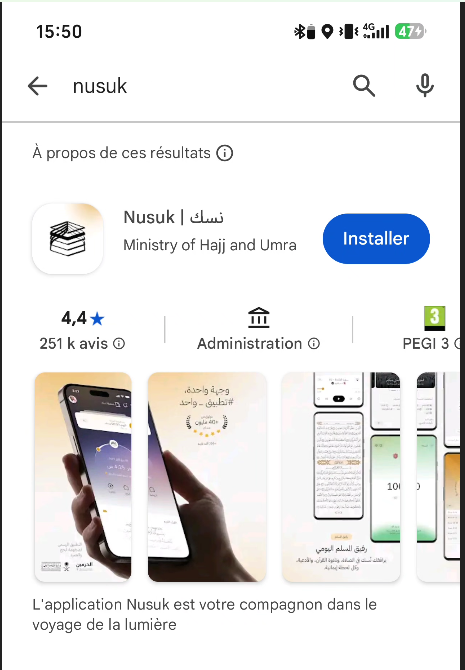
Download the official Nusuk application
Start by downloading the Nusuk application | نسك on your phone. It is available on:
- the Google Play Store for Android;
- the App Store for iPhone.
Beware of applications using similar names. Always check that you are downloading the official Nusuk application.
Create a new Nusuk account
Once the application is installed, open it.
On the home screen, first tap on « Login Or Register ».

On the login screen:
- Tap on « Register New Account ».
- Start your registration.

Create your password
Enter your full name and email address, then choose your password.
When creating the account, Nusuk will require you to choose a password that meets the criteria displayed in the application.
You may be asked to use a combination that includes:

Always follow the criteria indicated directly on the screen, as security requirements may evolve.
Then accept the conditions displayed in the application and tap on « Create Your Account ».
Keep your password and the email address used to create your account safe.
- Check your inbox.
- Look for the verification message sent by Nusuk.
- Retrieve the code received.
- Return to the application.
- Enter the requested code.
- Tap on « Update Profile ».

If you do not receive the message immediately, check your junk mail or « Spam » folder.

Once your email address is verified, the application may ask for permission to access your location. Choose the option that suits you to continue.
Complete your profile to access the Rawdah
From the home screen of Nusuk, tap on « Rawdah ».

Nusuk will then ask you to complete your profile. Tap on « Complete Profile ».

Next, select your user category. If you are coming from France, Belgium, Switzerland, or another foreign country, choose « International or GCC Visitor ».

Provide your information
Nusuk will ask you for several pieces of information to complete your profile:
- your nationality;
- your passport number;
- your visa information;
- your phone number;
Select the verification by visa number or border number, enter the requested information, and then tap on « Verify Your Account ».

Take your time and carefully check each piece of information entered, especially your passport number and visa number.
A mistake can complicate the creation of your account or access to the various services offered in the application.
Can a foreign phone number be used?
As an international visitor, you can use your foreign phone number.
You do not need to wait until you arrive in Saudi Arabia or have a Saudi SIM card to create your account.
Just make sure to select the correct international dialing code for your country. For France, it is +33.
However, even though you can create your account with a foreign number, you must have your visa to access the booking for the Rawdah.
How to book your slot for the Rawdah?
Once your account has been created, activated, and linked to your visa, you can proceed to book your slot.
From the home screen of the Nusuk application:
- Click on the « Rawdah » section.
- Indicate your gender by selecting « Male » or « Female ».
- Check the available slots.
- Choose the date and time that suits you.
- Confirm your booking.
Available slots go very quickly. It is therefore important to be particularly responsive when a slot appears and to confirm your booking without delay.
Before heading to the Rawdah
The QR code required to access the Rawdah is generated two hours before your appointment time.
It is recommended to arrive at the access point at least 30 minutes before your slot. If you are late, you may miss your appointment and not be able to access the Rawdah.
Also, make sure to keep your phone sufficiently charged to present your QR code during the screening.
Before leaving, open the Nusuk application and check:
- that your booking is confirmed;
- that the date displayed is correct;
- that the correct time is indicated;
- that your QR code is accessible.
Keep your login details secure
Keep the following information secure:
- your Nusuk email address;
- your password;
- access to your email inbox.
This information will allow you to log back into your account and use the recovery functions available in the application in case of any issues.
If you need to contact the support of the Saudi Ministry of Hajj and Umrah, the currently communicated contact details are:
- from Saudi Arabia: 1966;
- from abroad: +966 920002814;
- by email: care@haj.gov.sa.
As these details may evolve, check them directly in the official Nusuk application as well.
Once your account is created, activated, and linked to your visa, you will be able to access the service to book your slot for the Rawdah, subject to availability offered in the application.